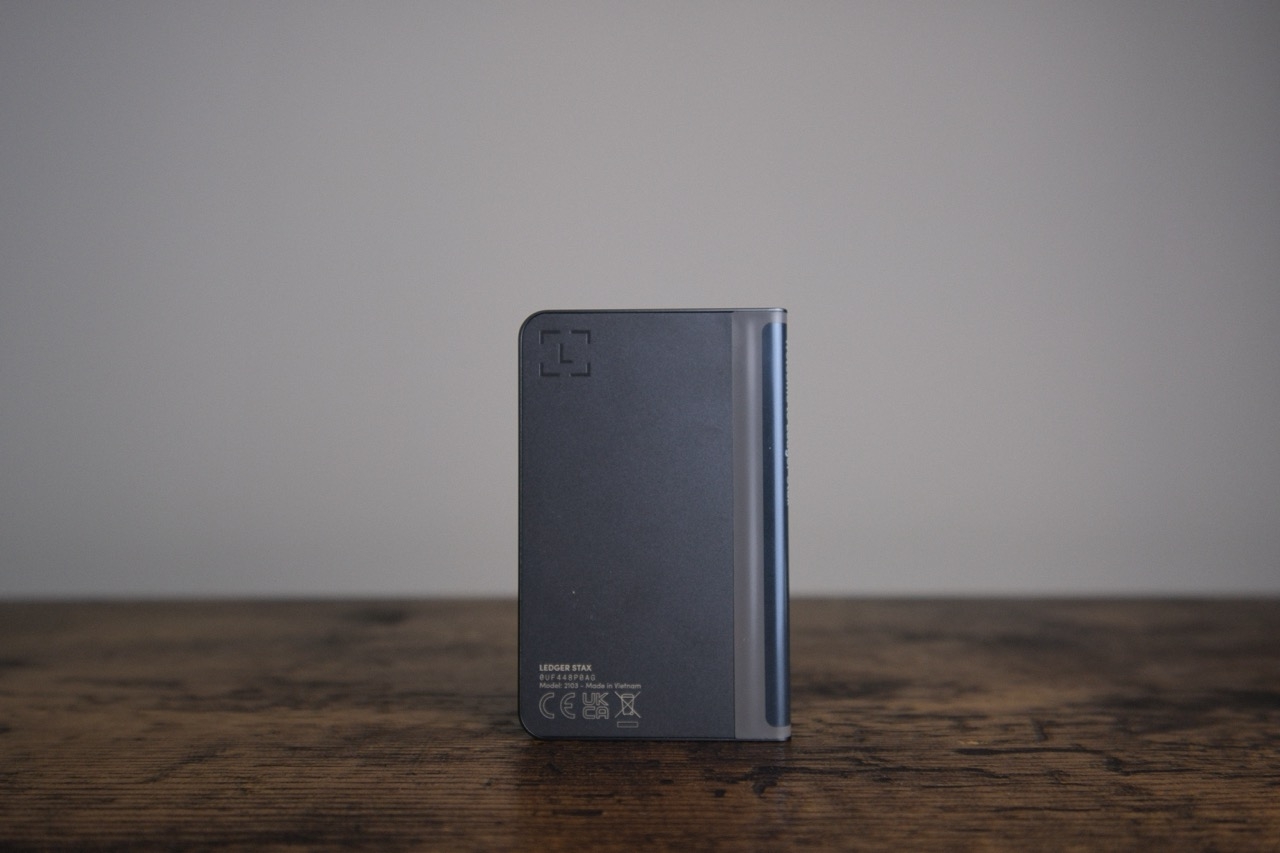
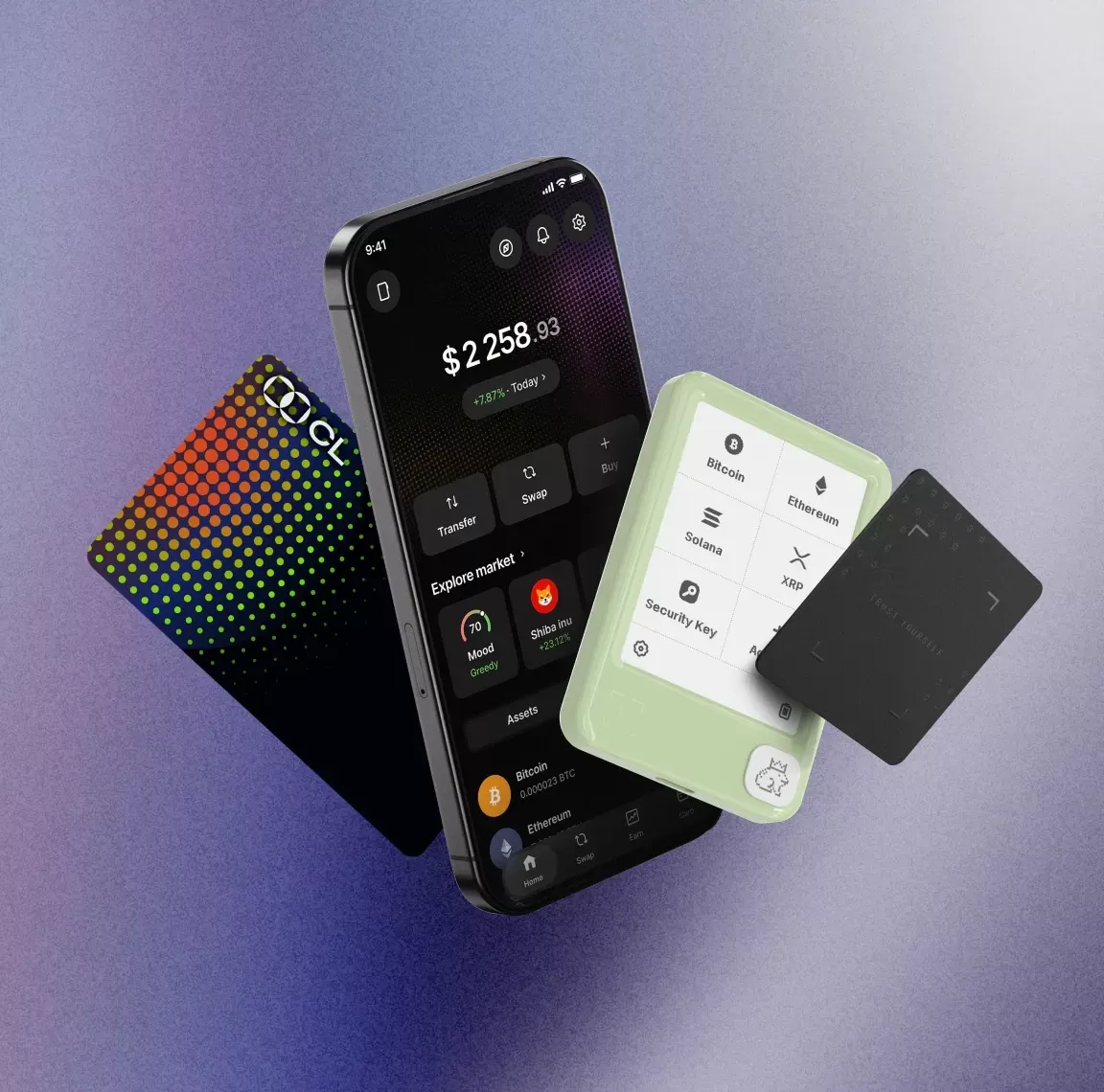
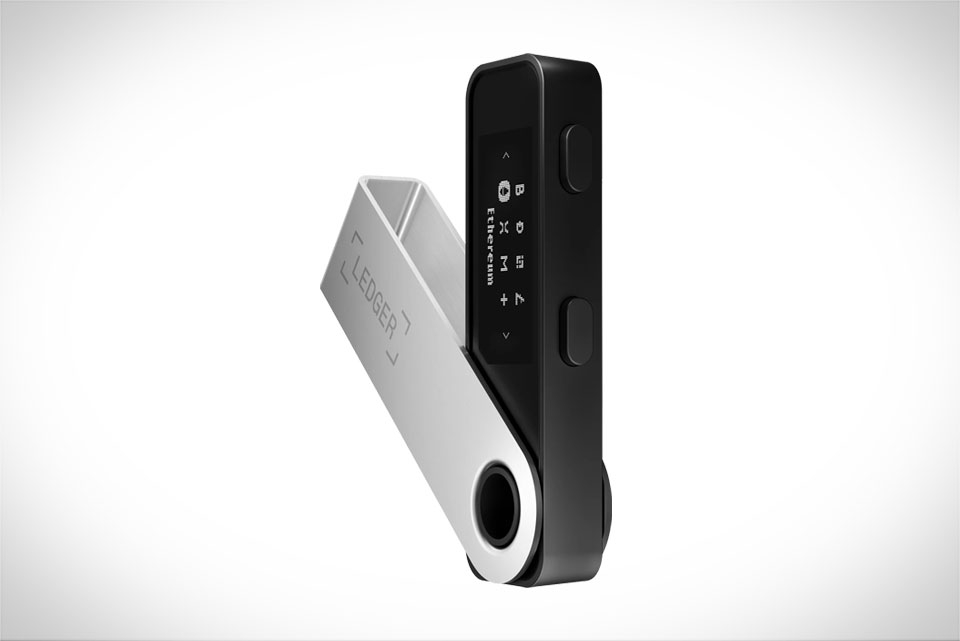
The Ledger Nano series, including the Ledger Nano S, Nano S Plus, and Nano X, stands as one of the most trusted hardware wallet solutions in the cryptocurrency space, renowned for its industry-leading secure element chip that stores private keys completely offline, isolated from internet-connected devices that are vulnerable to hacks and phishing attacks. Central to the functionality of these devices is the ecosystem of Ledger Apps, specialized programs that enable users to interact with different blockchains, manage crypto assets, access DeFi protocols, mint and trade NFTs, and more, all without exposing their private keys to online threats. For new users navigating the Ledger ecosystem, understanding how to install and uninstall these apps correctly is a fundamental skill that ensures both smooth access to their assets and maintenance of the device’s security posture.
Before you can manage apps on your Ledger Nano device, you will first need to set up the official Ledger Live application on your desktop or mobile device, and complete the initial device setup, including creating a PIN code and backing up your 24-word recovery phrase (also known as a seed phrase). It is critical to ensure your device’s firmware is updated to the latest version before installing or uninstalling any apps, as outdated firmware may cause compatibility issues, installation failures, or even security vulnerabilities. To check for firmware updates, open Ledger Live, navigate to the “My Ledger” tab, connect your Ledger Nano device via USB (or Bluetooth for Nano X users on mobile), enter your PIN to unlock the device, and approve the “Ledger Manager” permission on the device screen by pressing both physical buttons simultaneously. Ledger Live will automatically scan for available firmware updates and prompt you to install them if any are found; follow the on-screen instructions carefully, and never disconnect your device during a firmware update to avoid permanent damage to the device.
Unlike traditional software wallets that come preloaded with support for hundreds of blockchains, Ledger Nano devices use a modular app design for two key reasons: security and storage limitations. The secure element chip at the heart of every Ledger device has a finite amount of storage space allocated for apps – the original Nano S offers roughly 160KB of app storage, enough for 3 to 6 average-sized apps, while the newer Nano S Plus and Nano X offer 1.4MB and 2MB of storage respectively, supporting up to 100+ apps at once. By requiring users to install only the apps they need, Ledger reduces the overall attack surface of the device: fewer installed apps mean fewer potential entry points for malicious actors, as each app runs in a sandboxed environment within the secure element, and unused apps cannot be exploited if they are not present on the device. This design also ensures that the secure element’s processing power and storage are dedicated to the apps you actually use, leading to faster transaction signing and more reliable performance.
Installing an app on your Ledger Nano device is a straightforward process that can be completed in just a few minutes, provided you have already set up Ledger Live and updated your firmware. Start by opening Ledger Live and navigating to the “My Ledger” tab, then connect and unlock your device, and approve the Ledger Manager permission as you would for a firmware check. Once connected, the My Ledger page will display two main sections: a list of currently installed apps at the top, and the “App Catalog” below, which contains all officially supported apps available for installation. You can browse the catalog by category – such as Layer 1 blockchains, DeFi tools, NFT platforms, or stablecoin support – or use the search bar to find a specific app, like the Bitcoin app, Ethereum app, or Solana app. When you find the app you want to install, click the “Install” button next to its name. You will immediately see a prompt on your Ledger Nano device’s screen asking you to confirm the installation, with the full name of the app and its version number clearly displayed. Always double-check that the app name on the device screen matches the one you selected in Ledger Live, as this is a critical security check to prevent malicious apps from being installed without your knowledge. To confirm the installation, press both buttons on the device at the same time, and the installation process will begin. You will see a progress bar on both the Ledger Live interface and the device screen; do not disconnect your device or close Ledger Live during this process, as interrupting the installation can corrupt the app or cause temporary glitches with the device’s storage. Once the installation is complete, you will see a “Installed” notification in Ledger Live, and the app will appear in the list of installed apps, as well as on your device’s main menu, accessible by scrolling through the device’s interface with the left and right buttons.
If you encounter an error during installation, the most common cause is insufficient storage space on your device, especially if you are using an older Nano S model. If you see an “Insufficient Storage” message, you will need to uninstall one or more unused apps to free up space before you can install the new app, a process we will cover in detail later. Other common installation issues include unstable internet connections, outdated Ledger Live software, or a loose USB connection. To troubleshoot, try restarting both your Ledger device and the Ledger Live app, switching to a different USB port or using the original Ledger USB cable (third-party cables may not support data transfer properly), or checking your internet connection to ensure it is stable. If the problem persists, you can find detailed troubleshooting guides on the official Ledger Support website, or contact Ledger’s customer support team for assistance – though remember that no legitimate Ledger support representative will ever ask for your recovery phrase, PIN code, or private keys.
Uninstalling apps from your Ledger Nano device is just as simple as installing them, and it is important to note upfront that uninstalling an app will never result in the loss of your crypto assets. This is a common misconception among new users, but it is critical to understand: your crypto assets are stored on the blockchain, not on your device or the apps themselves, and the private keys that control access to those assets are stored permanently in the device’s secure element, separate from the apps you install. An app is simply a tool that lets you view your balance, send and receive transactions, and interact with the corresponding blockchain – uninstalling it removes the tool, but does not affect your assets or your ability to access them later by reinstalling the app. To uninstall an app, start by following the same initial steps: open Ledger Live, go to the My Ledger tab, connect and unlock your device, and approve the Ledger Manager permission. Scroll to the list of installed apps at the top of the page, find the app you want to remove, and click the “Uninstall” button next to it. Again, you will see a confirmation prompt on your device screen, clearly stating the name of the app you are about to uninstall. Double-check the name to ensure you are removing the correct app, then press both buttons to confirm the uninstallation. The process will only take a few seconds, and once complete, the app will disappear from your installed apps list and your device’s main menu, freeing up its storage space for other apps. If you ever need to use the app again in the future, simply reinstall it following the installation steps outlined earlier, and all of your associated assets will be visible as soon as you open the app, since they are stored on the blockchain and linked to your private keys.
For users who frequently switch between different apps or need to reinstall multiple apps after a firmware update, Ledger Live offers a convenient “Reinstall Apps” feature that automatically installs all the apps you had on your device before the update, saving you the time of searching for each one individually. This feature is particularly useful for Nano S users with limited storage, as well as anyone performing a full device reset or firmware upgrade. In addition to installing and uninstalling apps, you can also update existing apps directly from the My Ledger tab: when an app has a new version available, an “Update” button will appear next to its name in the installed apps list. Updating apps regularly is recommended, as updates often include security patches, bug fixes, and new features, such as support for new token standards, improved transaction signing speed, or integration with new DeFi protocols. For Nano X users who prefer to manage their device on the go, the mobile version of Ledger Live supports app installation and uninstallation via Bluetooth, eliminating the need for a USB cable. To use this feature, simply pair your Nano X with your smartphone via Bluetooth, open the Ledger Live mobile app, navigate to the My Ledger tab, and follow the same steps as you would on desktop. As with all Bluetooth connections, it is recommended to perform sensitive operations like app management in a private, secure environment to reduce the risk of nearby Bluetooth-based attacks, though Ledger’s Bluetooth protocol uses end-to-end encryption to protect all data transferred between the device and your phone.
There are several critical security best practices to keep in mind when managing apps on your Ledger Nano device. First, only ever install apps from the official Ledger Live App Catalog – never attempt to install third-party or custom apps from untrusted sources, as these may contain malicious code designed to trick you into signing fraudulent transactions or steal sensitive information. While the secure element’s sandboxed environment limits the damage a malicious app can do, it is still far safer to stick to officially audited apps that have been vetted by Ledger’s security team. Second, always verify the app name on your device’s physical screen before confirming any installation, uninstallation, or update. This is a core part of Ledger’s “trust the screen” security principle: the device’s screen is the only interface that cannot be spoofed by malware on your computer or phone, so always confirm that what is shown on the device matches what you expect. Third, never share your 24-word recovery phrase with anyone, and never enter your recovery phrase into any website, app, or form that claims to be affiliated with Ledger. Legitimate Ledger services will never ask for your recovery phrase, and anyone who asks for it is attempting to steal your assets. Finally, make sure you download Ledger Live only from the official Ledger website (ledger.com) or the official Apple App Store or Google Play Store, as third-party download links may contain malware that can compromise your device or steal your information.
Mastering the process of installing and uninstalling apps on your Ledger Nano device is an essential step in getting the most out of your hardware wallet, whether you are a casual crypto holder managing a few major assets or an active DeFi user interacting with dozens of different blockchains every week. The modular app design of Ledger devices strikes a careful balance between security and functionality, allowing users to customize their device to fit their specific needs while minimizing the attack surface that could be exploited by bad actors. By following the step-by-step processes outlined above, sticking to official apps and tools, and adhering to basic security best practices, you can manage your Ledger apps with confidence, knowing that your private keys and crypto assets remain protected by the industry’s most robust security architecture. Whether you are installing a new app to explore an emerging blockchain or uninstalling an old app to free up space for a new one, the process is designed to be simple, transparent, and secure, putting you in full control of your digital assets at all times.